
App gallery
These images show Sim Bridge’s actual Flutter UI, rendered with synthetic demonstration data. They are not screenshots of private messages or a physical phone, and they do not establish carrier SMS delivery, operating-system notification behavior, or live gateway health.
Desktop inbox
Section titled “Desktop inbox”Read the shared inbox and select an Android gateway/SIM for outgoing requests.
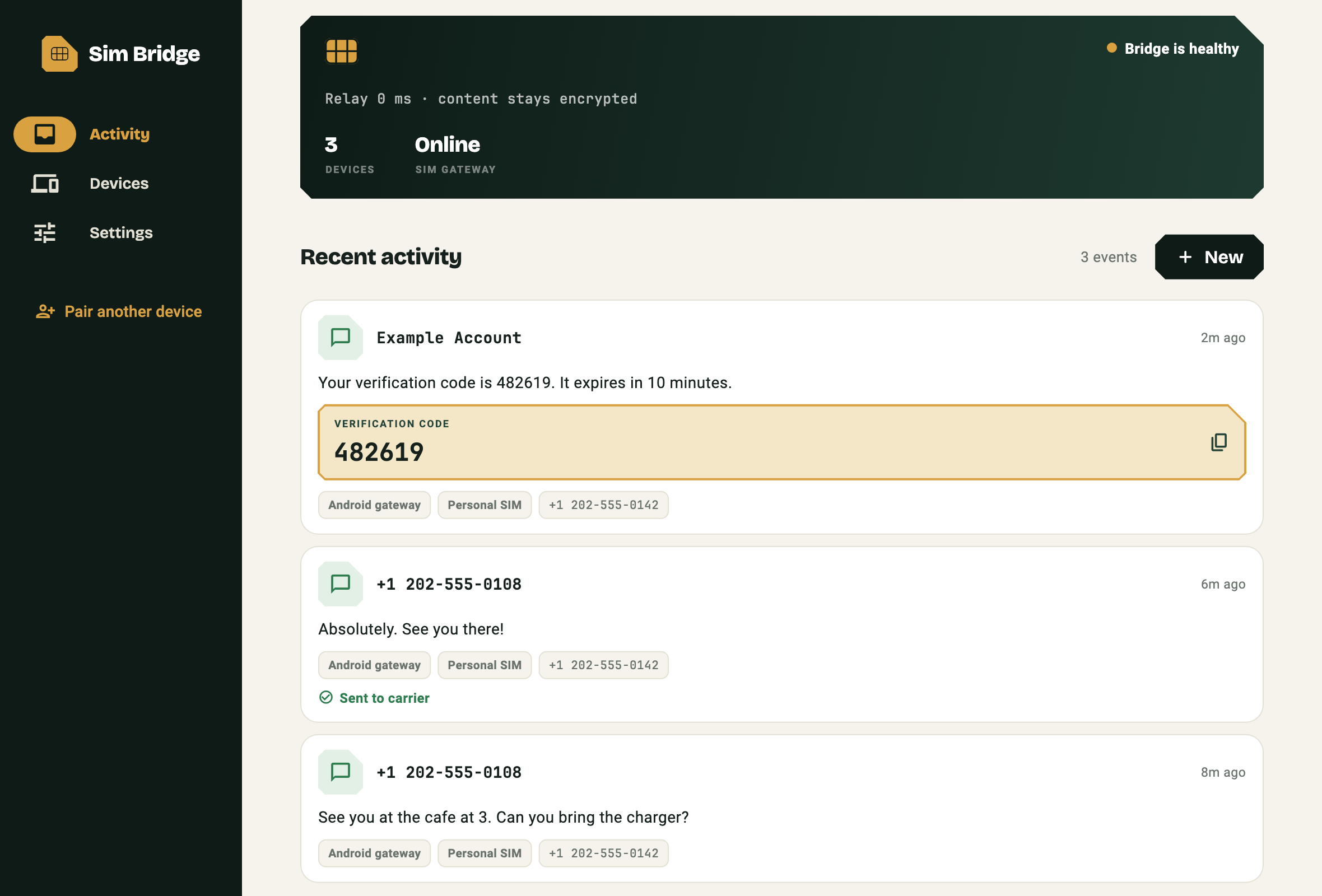
Desktop Flutter UI rendering · synthetic data.
Device roster
Section titled “Device roster”See paired clients and gateways, their reported state, and SIM information when supplied by Android. SIM details stay within encrypted envelopes.
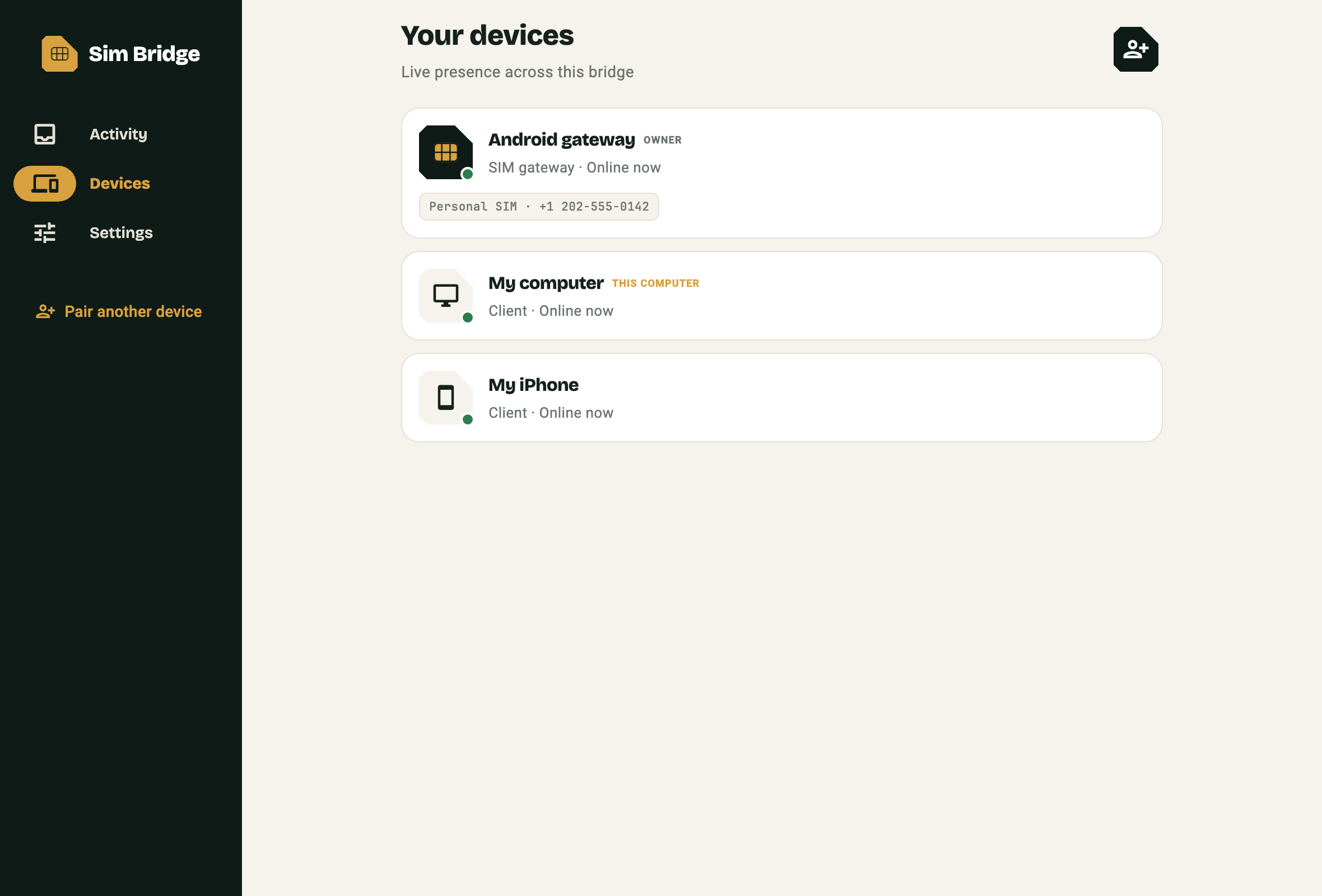
Desktop Flutter UI rendering · synthetic data.
Settings
Section titled “Settings”Review local notification and verification-code clipboard preferences. Desktop copying defaults off, and sync depends on the running app.
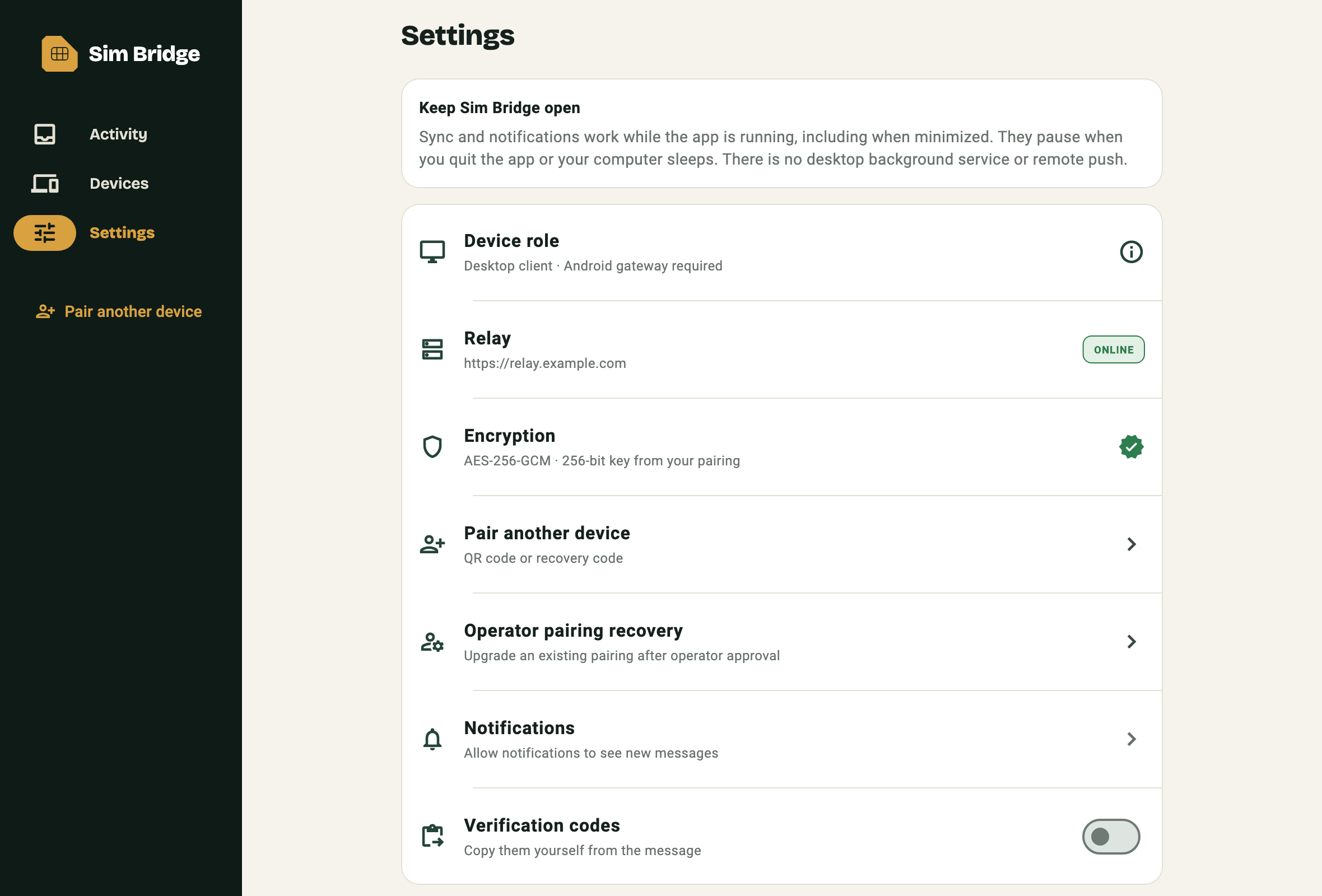
Desktop Flutter UI rendering · synthetic data.
Desktop onboarding
Section titled “Desktop onboarding”Desktop clients join an existing bridge by relay URL and recovery code. They do not expose a SIM gateway mode or camera invitation scanner.
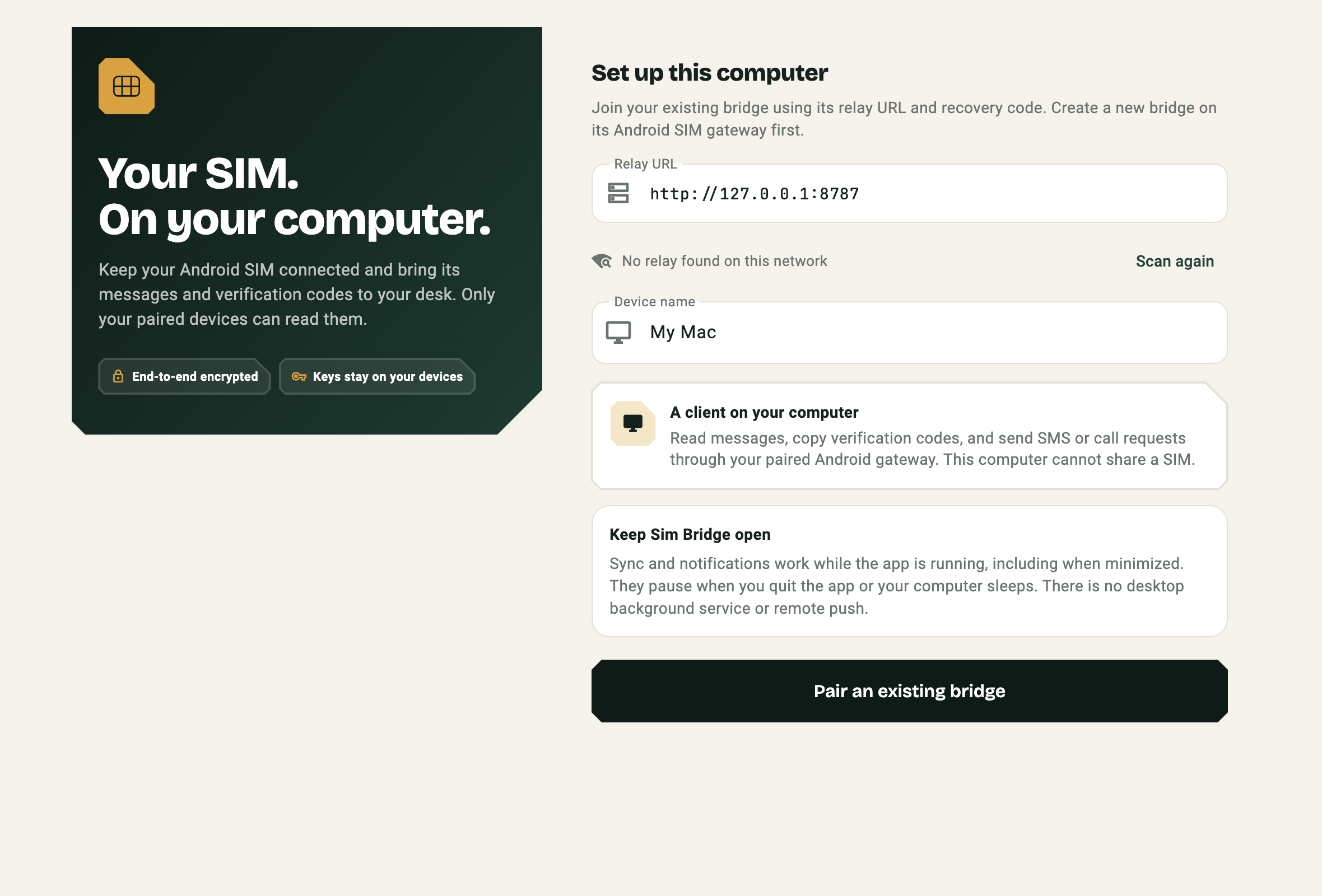
Desktop Flutter UI rendering · synthetic data.
Mobile inbox
Section titled “Mobile inbox”The phone layout keeps message content and gateway actions usable on a narrower screen. Android can act as a gateway; iOS is a client.
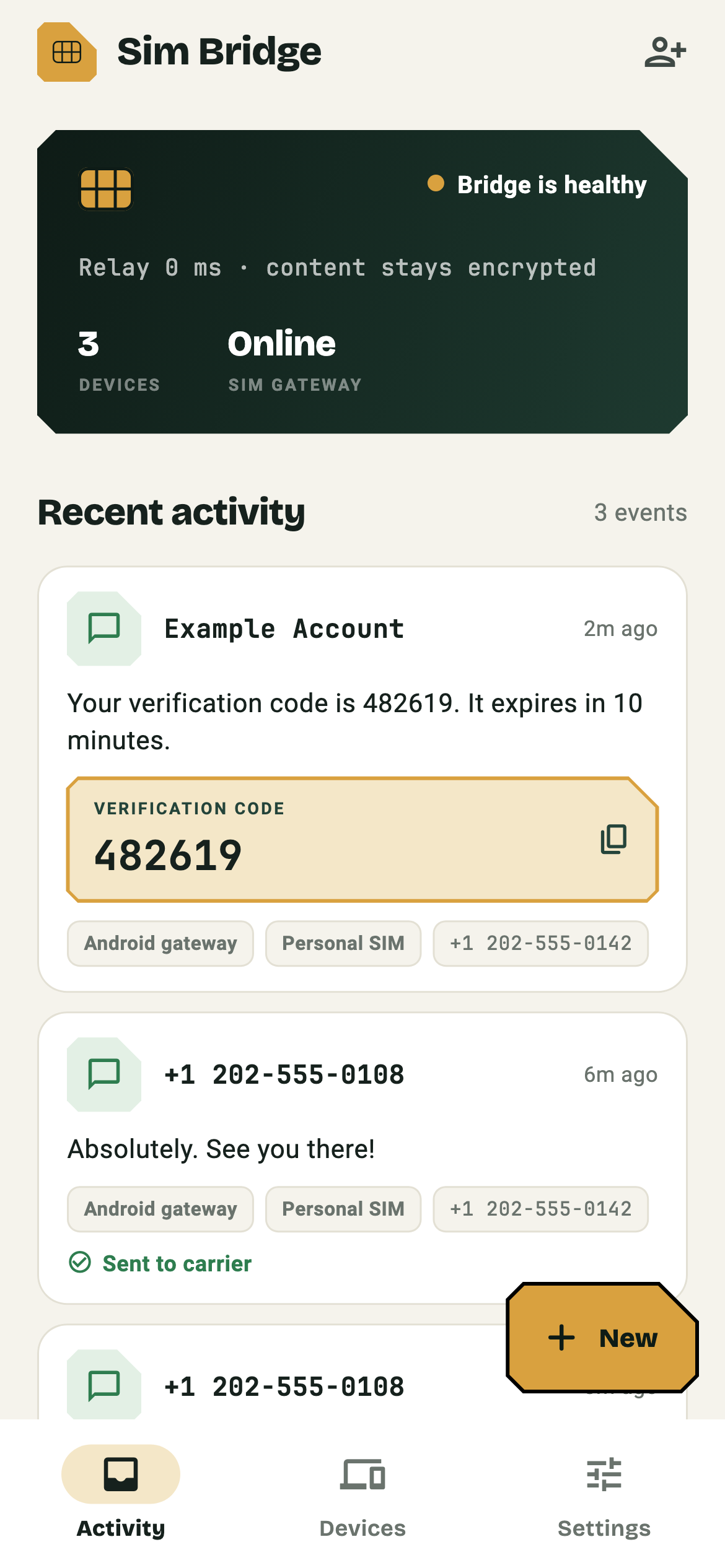
Phone-sized Flutter widget rendering · synthetic data, not a physical-device screenshot.
Continue with setup and pairing or desktop installation.